
Running ads without the Meta Pixel is like driving blind. You're spending money but have no real idea if you're getting any closer to your destination—sales. Installing the Facebook Pixel is the first step to knowing which ads work and which just burn your budget.
Think of it as the link that connects what people do on your site back to the ads they saw.
Why Your Meta Pixel Is a Must-Have Ad Tool
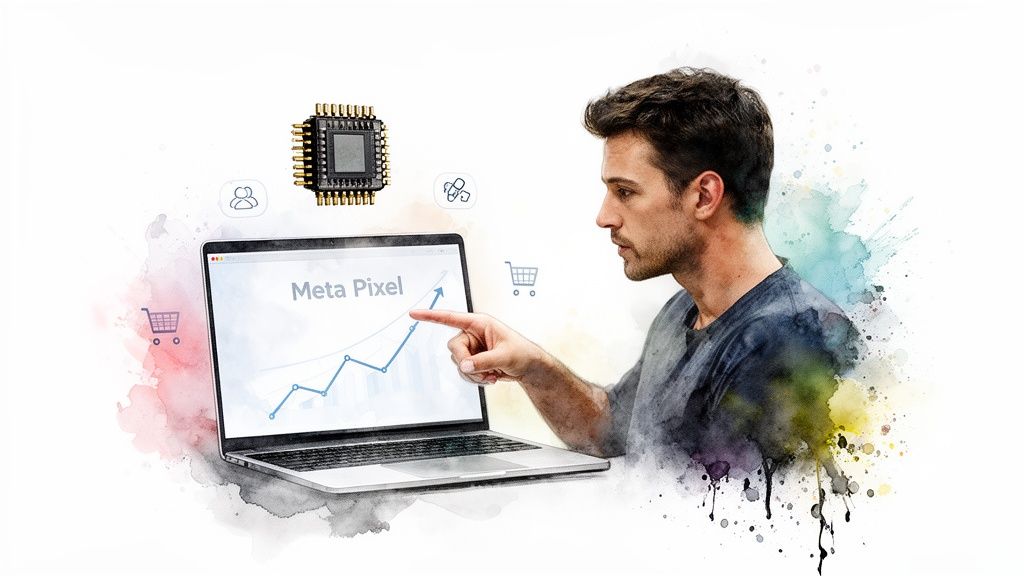
Let's cut right to it. The Meta Pixel is a small piece of code on your website. It sits in the background, watching how people interact with your brand after clicking an ad.
Without it, you’re just guessing. With it, you get the hard data to make profitable decisions.
This tiny code is the foundation for any real ad strategy. It’s not optional for any serious DTC brand. For effective Meta Ads Management, the Pixel is indispensable. It gives you the raw data to optimize campaigns and hit your goals.
The Core Jobs of the Pixel
The Pixel does more than count sales. It has three critical jobs that directly impact your ad performance and your bottom line.
Conversion Tracking: This is the big one. The Pixel tells you when someone takes a valuable action on your site, like a purchase. This lets you directly attribute sales to specific ads, so you know exactly what’s working.
Audience Building: It tracks everyone who visits your site. This lets you build custom audiences for retargeting. This is how you show those "Hey, you forgot this" ads to people who abandoned their carts. It's a powerful strategy we break down in our guide on what retargeting is in digital marketing.
Ad Optimization: Meta’s algorithm runs on data. The Pixel feeds it information about who is converting, which helps the algorithm find more people like them. It learns from your successes to get smarter about who sees your ads.
"Your Meta Pixel is the brain of your ad account. The more high-quality data you feed it, the smarter it gets at finding your next customer for a lower cost." - Alex Fedotoff, eCommerce scaling expert
The results are pretty clear. According to a case study from Meta, brands that implement the Pixel correctly often see a significant lift in their return on ad spend (ROAS).
But the game has changed. After Apple’s iOS 14 update, browser-based tracking became less reliable. Ad blockers and new privacy settings mean the Pixel can no longer see the full picture.
That’s why the new standard is pairing the browser Pixel with the Conversions API (CAPI). We’ll get into that later. For now, just know the Pixel is still step one.
Creating Your Pixel and Finding Your ID
First, you can't install a Pixel that doesn't exist. You need to jump into your Meta Business account and create one. This part is quick and gets you the one thing you need for every other step: your Pixel ID.
Don’t get bogged down here. It’s mostly just a few clicks.
You'll start in the Meta Events Manager. If you've never been here before, it can look a little overwhelming. Your mission is simple. Look for the green “Connect Data Sources” button. This is where you tell Meta you want to track what happens on your website.
Navigating Events Manager
Once you click to connect a data source, you’ll get a few options. Here’s the path:
Choose Web as your data source.
Give your Pixel a name. Be specific. [Your Brand] - Main Website Pixel is better than just "Pixel." It will save you a headache later.
Enter your website URL. Meta will check it to make sure it’s a real site.
After you click through, Meta generates your unique Pixel. The most important thing you'll get is your Pixel ID. This is a 15- to 16-digit number.
This ID is the key. It’s what connects your website directly to your ad account.
Pro Tip: Your Pixel ID is the only piece of information you need to grab. Copy it and keep it safe for a minute. You'll be pasting this number into Shopify, Google Tag Manager, or your site's code.
Once you have that ID, you're ready for the real work: deciding how to get it onto your site. This is a non-negotiable step for running effective Facebook ads for your Shopify store.
Choosing the Right Pixel Installation Method
You've got your Pixel ID. Now comes the important part: getting it onto your website.
There are a few ways to do this. The path you choose depends on your tech stack and how much control you want. Picking the right one now will save you from headaches down the road.
We’ll break down the three main options.
The No-Code Path: Shopify Integration
If you're on Shopify, this is your fastest route. Shopify has a native integration for Meta that does all the heavy lifting. You won’t touch a single line of code.
Just navigate to the "Facebook & Instagram" sales channel in your Shopify admin. Find the data sharing settings, and drop in your Pixel ID. That's it. Shopify automatically adds the Pixel to every page and sets up standard events like ViewContent, AddToCart, and Purchase.
This is the go-to method for 90% of Shopify store owners getting started. It's simple, reliable, and gets the job done without a developer.
This is the right choice if you want tracking live in under five minutes. The main trade-off is a lack of customization. If you want to track more than the standard events, you'll need another method.
For More Control: Google Tag Manager
Google Tag Manager (GTM) is the professional's choice. Think of it as a toolbox that lets you manage all your tracking scripts—Meta Pixel, Google Analytics, etc.—from one dashboard. You never have to edit your site’s code directly.
With GTM, you install its main code snippet on your site once. From there, you use its interface to deploy the Meta Pixel. GTM has official templates for the Meta Pixel, which makes setup much smoother and cuts down on errors. It gives you complete control to fire the Pixel on specific clicks or form submissions.
This is the best option for brands that want to scale tracking. You can manage dozens of tags without slowing down your site or pinging a developer for every change. Once you have this data, you can explore more complex strategies through your Meta Ads Manager account.
The learning curve is a bit steeper, but the flexibility is unmatched.
The Developer’s Route: Manual Installation
The third option is to install the Pixel manually. This means taking the base code snippet from Meta and pasting it directly into the <head> section of your website’s theme files.
Most pixel implementations require embedding a small snippet of JavaScript directly into your website's code. This method gives you total control, but it's also the easiest one to mess up. A tiny typo can break your tracking.
This approach only makes sense for custom-built websites or for founders with development experience. For everyone else, it’s an unnecessary risk.
Comparing Pixel Installation Methods
Here's a quick breakdown to help you decide.
For most DTC brands we work with, the choice is between the Shopify integration and GTM. Start with Shopify's built-in integration. As your brand grows, plan to migrate to Google Tag Manager for better data and more control.
Setting Up and Verifying Your Core Events
Getting the base Pixel code on your site is just step one. The real value comes from tracking what people do on your site. These actions are called events.
Without events, your Pixel is flying blind. It knows someone showed up, but not if they were just browsing or about to buy. Tracking events tells the story of how a user moves through your funnel.
For any e-commerce brand, there are four non-negotiable events.
The Four Essential DTC Events
These four events are the major milestones in your customer's journey. Getting them right is critical for building audiences that convert and for giving Meta's algorithm the signals it needs.
ViewContent: Fires when someone lands on a product page.
AddToCart: Fires the moment a product is added to the cart.
InitiateCheckout: Fires when a customer begins the checkout process.
Purchase: The one that really matters. This fires on your order confirmation page.
If you’re using the native Shopify integration, these events are set up automatically. For those using Google Tag Manager, you'll have more work to do, creating specific triggers for each action.
How to Verify Everything Is Working
Never assume your tracking is working correctly. Wasting ad spend on bad data is one of the fastest ways to burn your budget.
The best way to check your work is with the free Meta Pixel Helper extension for Chrome. Once installed, an icon appears in your toolbar. Now, go to your own website and act like a customer.
Visit a product page, add something to your cart, start checkout, and complete a test purchase. Watch the Pixel Helper icon at each step. It should light up and show the correct event firing with a green checkmark.
Next, jump back into your Meta Events Manager. Find the "Test Events" tab, enter your URL, and run through the same customer journey. You should see events pop up in the dashboard in real-time. This confirms that Meta’s servers are receiving the data. A solid testing process is fundamental to tracking important KPIs in Google Analytics.
Don't Forget Domain Verification
There’s one last critical step: domain verification. This is a mandatory step inside Meta Business Manager to prove you own your website. It’s Meta’s way of ensuring your Pixel data is legitimate.
Head to Business Settings > Brand Safety > Domains and add your site’s URL. Meta will give you a few ways to prove ownership. The easiest is adding a meta-tag to your site’s header code. If you're on Shopify, your theme settings often have a field just for this.
Verifying your domain isn't optional. It’s essential for ensuring your event data is trusted and properly attributed. Skip this, and your ability to optimize campaigns will be severely kneecapped.
How the Conversions API Fixes Your Tracking
Let's be blunt: relying only on the browser Pixel is a mistake. It's like trying to fill a bucket with a massive hole in it.
Between ad blockers, cookie restrictions, and Apple's privacy crackdowns, you're losing a huge chunk of your data before it ever reaches Meta.
The Conversions API (CAPI) is the fix. It creates a second, more reliable data stream that goes directly from your server to Meta's servers. This bypasses the browser, making it immune to the issues that cripple the Pixel. Think of it as a direct, private line for your most important conversion data.
This isn't just a "nice-to-have" anymore. It's table stakes.
Why Server-Side Tracking Is the New Standard
The browser is a chaotic, uncontrollable environment. You can't control what ad blockers your customers use or their privacy settings. This leads to lost data, which means Meta’s algorithm gets weaker signals, your targeting gets worse, and your ad costs go up.
CAPI solves this by sending data from the one place you control: your server.
When someone buys a product on your Shopify store, that event is recorded on your server. CAPI grabs that server-side data and sends it straight to Meta. This ensures critical events like purchases are always captured, even if the browser Pixel gets blocked.
After the iOS 14.5 update, advertisers relying only on the Pixel saw a huge drop in reported conversions. One study from Statista showed that e-commerce ROAS fell by an average of 14%. Pairing the Pixel with CAPI restores much of that tracking accuracy.
The key is that CAPI and the Pixel work together. They are two halves of a whole, giving you the most complete and resilient tracking setup possible.
How Deduplication Works
A common question is, "Won't this just double-count my conversions?"
Nope. Meta built a smart process called event deduplication.
When you send the same event (like a Purchase) from both the browser Pixel and CAPI, Meta uses unique event IDs to recognize it's the same action. It matches them up and only counts it once. This gives you the real-time speed of the browser Pixel and the reliability of the server-side API.
The result is a cleaner, more complete data set that leads to:
Better ad optimization: Meta's algorithm gets a clearer picture of who your customers are.
Lower cost per acquisition (CPA): Smarter optimization means less wasted ad spend.
More accurate reporting: You can finally trust the numbers in Ads Manager again.
For anyone on Shopify, setting up CAPI is almost ridiculously easy. The same "Facebook & Instagram" sales channel you used for your Pixel has a simple toggle to enable the Conversions API. It’s a one-click process that dramatically improves your data quality.
Getting this data foundation right is the first step before you can think about how to scale your Facebook ads effectively.
Your Top Pixel Questions, Answered (FAQ)
Founders ask us about the Meta Pixel all the time. Here are the straight-up, no-fluff answers to what we hear most.
Is It Okay to Have More Than One Pixel on a Website?
Technically, yes. But for your own brand, you should have one primary Pixel tracking all your core events (Purchase, AddToCart, InitiateCheckout). This keeps your data clean and gives Meta’s algorithm strong, consistent signals.
Adding extra Pixels without a solid reason just complicates things. Unless there's a specific, strategic purpose, stick to one.
Can the Pixel Track People Who Use Ad Blockers?
Nope. The Meta Pixel is a browser-side script. Ad blockers are designed to shut down scripts just like it.
Research from Backlinko shows that nearly 43% of internet users now run ad blockers. If you only use the browser Pixel, you're flying blind with almost half of your potential customers. This is exactly why the Conversions API (CAPI) is non-negotiable now.
How Long Does It Take for Pixel Data to Show Up?
For testing, Pixel data is instant. When you’re using the Meta Pixel Helper or the "Test Events" tool, you'll see actions pop up within seconds.
The delay is in your Ads Manager reporting. Meta’s attribution can take up to 72 hours to fully process and assign conversions to your ads. If you launch a new campaign and don't see sales attributed right away, don’t panic. Give it a day or two.
What is the difference between a Facebook Pixel and the Meta Pixel?
There is no difference. They are the same thing. Facebook rebranded its parent company to Meta, and the "Facebook Pixel" was renamed the "Meta Pixel" to align with the new company name. The functionality is identical.
Where is my Facebook Pixel ID?
You can find your Pixel ID in the Meta Events Manager. Navigate to "Data Sources," select your Pixel, and the ID will be displayed prominently at the top of the page, typically under the Pixel's name. It is a 15- or 16-digit number.
How do I know if my Pixel is working?
The best way is to use the Meta Pixel Helper Chrome extension. Go to your website and perform key actions like viewing a product and adding to cart. The extension's icon will light up and show you which events are firing correctly. You can also use the "Test Events" tool within Meta Events Manager for real-time verification.
Stop guessing and start growing. Needle connects to your Shopify, Meta, and Klaviyo data to generate high-performing ad campaigns, emails, and creative assets in days, not weeks. We handle the execution so you can focus on the big picture. See how Needle can automate your marketing.