

If your Shopify sales numbers don't match your Meta Ads Manager, you're not imagining things. It's a classic sign of a broken pixel. It means you're burning cash.
The Meta Pixel Helper is a free Chrome extension. It's your first line of defense. This is a non-negotiable tool for any DTC brand serious about ad returns.
Why Your Ad Spend Is Wasted Without This Tool
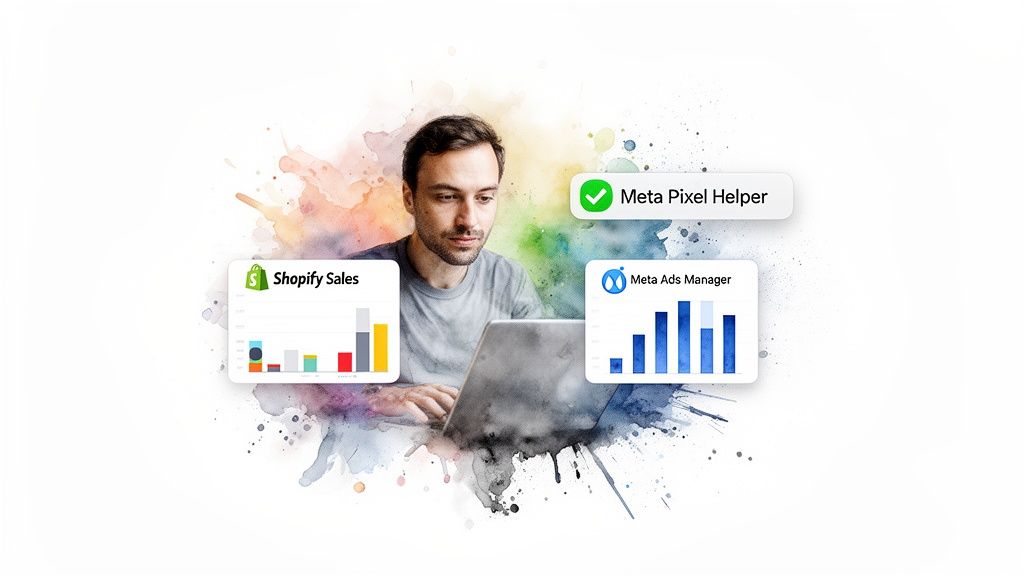
Let's cut to it. You pay Meta to find customers. If its algorithm has no idea who buys from you, it can't find more people like them. Your ad spend is flying blind.
The Meta Pixel is the bridge between your Shopify store and Meta's ads. It reports key actions: who viewed a product, who added to cart, who purchased. When that bridge is cracked, your campaign performance tanks.
The Real Cost of Bad Data
This isn't a small glitch. We're talking about pouring thousands into ads, only to see conversion numbers in Ads Manager that look nothing like your Shopify dashboard.
It’s a nightmare. And it's common. Some data suggests that over 70% of advertisers may have pixel issues that hurt their results.
Meta launched the Pixel Helper around 2016. It now has over 3 million users. The reason is simple: it works. It runs quietly in your browser, showing you which pixel events fire on any page. This simple check catches the most costly tracking errors that kill your Return on Ad Spend (ROAS).
"Your Meta campaigns are only as smart as the data you feed them. If your pixel is sending garbage data, you're paying Meta to find you garbage customers. The Pixel Helper is your quality control."
- David Ogilvy, often called "The Father of Advertising," would have said this if he were alive today. The principle stands.
Protecting Your ROAS From Day One
The good news? You don't need to be a developer to fix your tracking. The Meta Pixel Helper translates technical jargon into simple green or red signals.
Here’s what it does for your brand in plain English:
Instantly Validates Setup: It confirms your pixel is active on every page, from your homepage to the thank-you page.
Diagnoses Critical Errors: It flags the big stuff—a missing pixel, duplicate events, or events loading too late to be counted.
Ensures Clean Data: It verifies that crucial events like Purchase and AddToCart are sending the right info back to Meta.
Spending five minutes to verify your setup with this tool ensures the data in your Meta Ads Manager is accurate. It’s a fundamental step. Clean data leads to better audiences, smarter targeting, and a higher return on every dollar you spend.
How to Install and Read the Meta Pixel Helper
Alright, let's get your tracking sorted. Installing the Meta Pixel Helper takes two minutes. It will save you hours of guesswork. It's a free Chrome extension. No more flying blind.
First, add it to your browser. Go to the Chrome Web Store, search for "Meta Pixel Helper," and click "Add to Chrome." A small </> icon will appear in your browser's toolbar. You're ready to start diagnosing.
Here’s a look at the official extension page so you know you've got the right one.
Once it's added, the tool automatically scans every website you visit for Meta Pixel code. It’s that simple.
Reading the Signals
Now, let's put it to use. Go to your own website and click the </> icon. A small window will appear showing any pixels it found. This is your command center for pixel health.
The popup gives you critical info at a glance. You'll see the Pixel ID—make sure this matches the one in your Meta Events Manager. You’ll also see a list of events firing on the page, like PageView or ViewContent.
Each event gets a colored icon. Green means everything’s running smoothly. Yellow is a heads-up for a minor issue you should fix. Red is a critical error that’s actively costing you money.
For example, a PageView event should fire on every page. If it doesn't, or if you see a red icon, the helper will give you clues why. It could be the pixel code is not found or an ad blocker is in the way.
Making Sense of the Data
When you click an event in the popup, it expands with more details. This is where you see exactly what data is being sent to Meta.
Event Name: Confirms the action tracked (e.g.,
AddToCart,Purchase).Parameters: These are the crucial details. For a
Purchaseevent, you need to see parameters likevalueandcurrency.URL: The exact page where the event was detected.
Let's say you see a yellow warning on an AddToCart event. Clicking it might reveal a "missing parameter" message. This means the pixel fired but failed to send key data—like the product's price or ID.
Fixing these small issues is a big deal. It ensures Meta's algorithm gets the clean, rich data it needs to optimize your campaigns and find you more customers.
Diagnosing Common Pixel Errors on Shopify
Alright, let's get into the weeds. Seeing a red error in the Meta Pixel Helper is jarring. But it's better than flying blind with your ad spend.
On Shopify, most pixel problems come from a few common culprits. Usually theme changes, new apps, or a wonky initial setup. We’ve seen this hundreds of times.
The key is not to panic. These errors are almost always fixable without calling a developer.
Pixel Did Not Load
This is the big one. The most common and critical error you'll see. If the Meta Pixel Helper flashes "Pixel Did Not Load," it means your website is sending zero data to Meta. Your ads are completely disconnected from your store's activity.
The usual suspects are predictable:
A new theme: You installed a new Shopify theme but forgot to add your Meta Pixel ID back into the settings.
Accidental code removal: A developer or an app accidentally stripped the pixel script from your
theme.liquidfile.The Shopify-Meta App: You might have disconnected or reconfigured the official app, which then removed the pixel.
The fix is usually straightforward. Go to your Shopify admin, find the "Facebook & Instagram" sales channel, and check that your pixel is correctly connected. This single step solves the problem 90% of the time.
Multiple Pixels Found
Seeing "Multiple Pixels Found" is another frequent headache. This happens when the same pixel ID fires more than once. Or when different pixel IDs fire on the same page. This leads to garbage data, like reporting two PageView events for every visitor.
Here’s a real-world scenario we see constantly: you add the pixel ID directly into your Shopify theme settings. A month later, you install a new marketing app that also adds its own pixel tracking. Now you have two pixels firing for every action. Your data is a mess.
To fix this, use the Meta Pixel Helper to see the duplicate Pixel IDs. Then, play detective. Check your theme.liquid file for hardcoded pixel scripts. Review the settings of any marketing or analytics apps you’ve installed recently. Find the extra one and remove it.
We once worked with a brand whose ROAS was artificially cut in half. They were firing two
Purchaseevents for every order. They tracked double the sales against the same ad spend. It looked like their campaigns were a total failure. The fix took five minutes.
Event Fired Too Late
This yellow warning isn't as critical as a red error, but you shouldn't ignore it. It means the pixel event did fire, but it loaded so slowly that the visitor might have already left. If a Purchase event fires too late, Meta may not count the conversion. This directly hurts your reported ROAS.
This is a classic symptom of a bloated website. One loaded with heavy apps, huge images, or complex custom code. Our guide on optimizing your Facebook ads for Shopify dives deeper into how site speed and ad performance are linked. Check your Shopify speed score. Look for any apps that are known site-slowers.
Common Meta Pixel Helper Errors and Fixes for Shopify
This table is your cheat sheet for decoding what the Pixel Helper is telling you and getting straight to the solution.
| Error Message You See | What It Really Means | How to Fix It Fast |
|---|---|---|
| Pixel Did Not Load | The pixel code is missing or blocked. Meta is getting zero data. | Go to your Shopify "Facebook & Instagram" sales channel and reconnect your pixel. Check for apps blocking scripts. |
| Multiple Pixels Found | You have two or more pixels firing, causing double counting and skewed data. | Check your theme.liquid code for hardcoded scripts and review app settings. Remove the duplicate pixel. |
| Event Fired Too Late | The event took too long to load, so the conversion might not be counted. This is a site speed issue. | Defer loading of non-essential scripts. Compress your images and uninstall slow or unnecessary apps. |
| Missing Parameter | An event is missing key data Meta needs, like a product's value or currency on a purchase. | Check the app or code that triggers the event (e.g., your checkout process) to make sure it's passing all required data. |
Think of these errors as your pixel's way of telling you exactly what it needs. A few minutes of diagnosis can save you thousands in wasted ad spend.
Verifying Key Ecommerce Events in Your Funnel
Fixing pixel errors after spending money on ads is a losing game. It’s reactive. The smart move is to proactively audit your sales funnel. The Pixel Helper is the perfect tool for a quick, effective health check.
Let's walk through a typical customer journey on a DTC site. We’ll look at what the helper should be showing at each step. This isn’t just about finding what's broken. It's about confirming what's working so Meta gets a clear picture of your sales process.
Auditing Your Funnel Step by Step
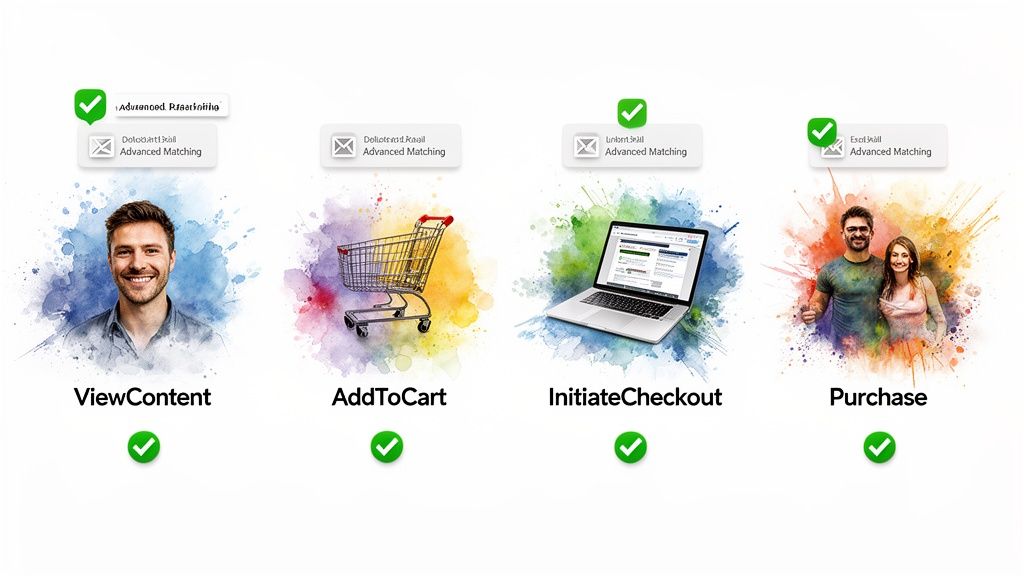
Act like a real customer. Go through the entire funnel, from product discovery to the thank you page. At each stage, open the Meta Pixel Helper to make sure the right event fired.
Here’s the ideal flow you're looking for:
On the Product Page: A shopper lands here. The helper must show a green
ViewContentevent. This tells Meta which products are grabbing attention. This data is gold for building retargeting campaigns.When they Add to Cart: A user clicks "Add to Cart." You need to see a green
AddToCartevent fire. This is a massive signal of intent. If this event is broken, Meta can't build audiences of people who abandon their carts.As they Start Checkout: The user proceeds to checkout. An
InitiateCheckoutevent should appear. This is another high-intent signal. It's perfect for creating audiences you can hit with a reminder message.After they Complete the Purchase: On your "Thank You" page, you must see a
Purchaseevent. No exceptions. This is the most important event. Expand this event in the helper. Confirm it's sending the correctvalueandcurrencyparameters. Without these, Meta has no idea what your ROAS is.
Making sure your key e-commerce events are accurate supports conversion optimization best practices for Shopify. It helps you turn more clicks into customers.
We once worked with a brand whose
InitiateCheckoutevent wasn't firing. A new checkout app was causing a conflict. They were missing out on retargeting their most valuable audience for weeks. A quick audit with the helper spotted the gap in minutes.
Checking Your Advanced Matching Setup
In a world of privacy, clean data is everything. Advanced Matching helps you connect browser activity to user profiles. It securely sends hashed customer data (like emails) with your pixel events. The helper can tell you if it's working.
On your checkout and "Thank You" pages, open the helper. Look for the em (email) or ph (phone number) parameters. You should see them as long strings of jumbled text. That's a good thing. It means the data is correctly hashed before it's sent to Meta.
Seeing this confirms you’re maximizing your attribution. Globally, the Meta Pixel tracks actions on 16.3% of all websites, enabling powerful retargeting. Ensuring these events fire correctly is what makes that performance possible.
Moving to Pro-Level Tracking Beyond the Helper
The Meta Pixel Helper is your first line of defense. It's great for checking what’s happening on the front end. But it only tells you half the story.
If you only rely on browser tracking, you’re running your business with one eye closed. Ad blockers and privacy updates mean you're missing a huge chunk of data. That’s why any serious tracking setup requires both the Meta Pixel and the Conversions API (CAPI).
Why You Need Both Pixel and CAPI
Think of the Meta Pixel as your scout on the ground. It reports what it sees from a user’s browser. CAPI is your direct line to HQ. It sends data from your server straight to Meta. That server-to-server connection can’t be stopped by ad blockers or browser privacy settings.
When you use them together, you get a much more complete picture of what’s happening.
The Pixel Helper's job is to confirm your scout is working correctly. You use it to validate that browser-side events like AddToCart and Purchase are firing. Once you get that green light, you know the browser part of your data stream is clean.
The Pixel Helper confirms your browser events are firing. CAPI captures everything else. Together, they create a tough, reliable system that makes sure you don’t miss conversions.
This combined approach directly impacts your bottom line. Better data means Meta can more accurately attribute sales. This is the foundation for solid marketing effectiveness measurement and a better ROAS.
Graduating to Events Manager
Once the Pixel Helper shows your browser events are firing cleanly, your next stop is Meta's Events Manager. This is where you see the whole picture. Inside Events Manager, the Test Events tool is your command center for validating the entire setup—both browser and server-side.
Here’s how they should work together:
Meta Pixel Helper: Use it first for an instant check on your website. It’s fast, simple, and perfect for diagnosing issues on the fly.
Events Manager's Test Events: This is where you verify CAPI is working and that Meta is correctly deduplicating events. This stops the same purchase from being counted twice.
For example, when you test a purchase, you should see the Purchase event from both the browser (pixel) and the server (CAPI) in the Test Events tool. Meta will then show you that it has successfully deduplicated them.
Building resilient tracking isn't a technical exercise; it's a core business function. Clean data in means smarter campaign decisions and a more predictable return.
Frequently Asked Questions
You have questions about the Meta Pixel Helper. We have answers. Here's the straight talk we give founders every day.
Why Does the Meta Pixel Helper Say 'Pixel Did Not Load'?
This is the big one. If you see this, your ads are flying blind. It means the pixel code isn't on the page or something is blocking it.
First, the simple stuff: turn off your own ad blocker. If the error is still there, your pixel code isn't installed right. If you're on Shopify, this often happens after a theme update or installing a new app. Your first stop should be the "Facebook & Instagram" sales channel in your Shopify admin to make sure everything is still connected.
What’s the Difference Between the Meta Pixel Helper and Events Manager?
Think of it this way: The Meta Pixel Helper is your on-the-ground scout. It's a Chrome extension that gives you real-time feedback on any specific page. You use it for quick debugging right in your browser.
Events Manager is your command center. It’s the dashboard inside the Meta Business Suite where all your pixel data is collected. You go there to see the bigger picture, check overall data health, and manage your Conversions API setup. One is for instant checks, the other is for long-term analysis.
Can I Use the Meta Pixel Helper on a Competitor's Website?
Yes. You absolutely should. This is one of the easiest competitive research tactics out there. It’s free.
Go to a competitor's site. Click through their entire funnel—from the homepage to a product page, add to cart, and all the way through checkout. The helper will show you exactly which standard and custom events they're firing. This gives you a blueprint of how they're structuring their funnel for Meta's algorithm.
The Helper Shows a Yellow Warning for an Event. Is That Bad?
It’s not a full-blown crisis, but you need to fix it. A yellow warning means the event fired, but it's missing important details.
A classic example is a yellow warning on a
Purchaseevent. The event was recorded, but maybe thevalueorcurrencyparameter wasn't included. While Meta knows a purchase happened, it doesn't know how much it was worth. Fixing these warnings makes your ROAS reporting far more accurate. It gives the algorithm better data to find more high-value customers.
Ready to stop guessing and start growing? Needle is your AI marketing agency in a tab, built for DTC founders who need agency-level results without the agency price tag or timeline. Get your custom growth plan today.