

To sign into Shopify, you need your store’s URL, your email, and your password. That’s it. But this isn't just another login. It’s your daily entry point to your brand's command center. The place you get the data that drives growth.
Your Gateway to Growth: Why Your Shopify Sign-In Matters
Every time you log into your Shopify dashboard, you're stepping into the heart of your business. This isn't just about a quick check on today's sales. It’s your direct line to the customer insights, inventory levels, and marketing data that shape your next move.
Making this a daily ritual is step one to making smarter, faster decisions. You chose a platform often called the Best Ecommerce Platform for Small Business for a reason.

Unlocking Your Brand's Potential
That login screen is more than a security checkpoint. It’s a portal to opportunity.
Behind it, you'll find the real-time analytics you need to tweak your Meta campaigns or fine-tune your Klaviyo email flows. For any founder chasing consistent revenue, this daily habit is non-negotiable.
"Shopify empowers entrepreneurs with a powerful suite of tools, and regular engagement with the dashboard is key to leveraging these resources for growth." - Tobi Lütke, CEO of Shopify
This small shift in perspective connects the simple act of logging in to the bigger picture: scaling your brand. The data you see seconds after logging in can instantly tell you:
Which products are suddenly trending.
Where your most valuable traffic is coming from.
If that new ad campaign is pulling its weight.
As of 2024, Shopify powers millions of businesses in over 175 countries. According to their own reports, these businesses generated $444 billion in global economic impact. Tapping into that potential starts the moment you sign in.
Navigating the Shopify Login Process
Let's cut right to it. Getting into your Shopify store should be the easiest part of your day.
Most founders I know just bookmark their unique admin URL. It looks like this: your-store-name.myshopify.com/admin. Swap "your-store-name" with your actual store's name, save it, and you're one click away.
The other route is to go to shopify.com/login. This is handy if you manage a few different stores or can't recall your specific admin address. It'll just ask for the store URL before you proceed.

Signing In on Desktop and Mobile
Whether you're at your desk or checking orders from your phone, the process is the same. The Shopify mobile app mirrors the desktop experience, asking for your store address, email, and password. It’s built for those moments when you need to quickly check inventory or answer a customer query.
Once you’re in, what you can see and do depends entirely on your role.
Store Owner: This is you. You have the keys to the kingdom—full control over everything.
Staff Account: For your team members. Their access is limited by whatever permissions you've granted them.
Shopify Partner: This is an agency, developer, or freelancer you've hired. They request access to your store to do their work.
Securing Your Account with Two-Factor Authentication
If you haven’t enabled two-factor authentication (2FA) yet, stop and set it up. Now. A simple password isn't enough to protect your business. A Google study found that multi-factor authentication can block up to 100% of automated bot attacks.
You can turn on 2FA from your Shopify admin under Settings > Users and permissions. You’ll need an authenticator app like Google Authenticator or Authy.
Once it's active, Shopify will prompt you for a six-digit code from your app every time you log in. It’s a simple, powerful step that ensures it's actually you signing in.
Pro Tip: When you set up 2FA, Shopify gives you a set of one-time recovery codes. Don't just dismiss them. Print them out or save them somewhere secure and offline. If you ever lose your phone, these codes are your only lifeline to get back into your account.
Once you're logged in and secure, you can start putting your store data to work. For a practical next step, check out our guide on how to build a high-performing Facebook ad for your Shopify store.
Fixing Common Shopify Login Problems
Getting locked out of your Shopify store is a momentum killer. It’s a roadblock when you just need to update a product or check an order. The fixes are usually straightforward once you know where to look.
The most common culprit is a forgotten password. Use the "Forgot your password?" link right on the login page. Shopify will send a reset link to the email tied to your account. If it doesn't show up in a minute, check your spam folder.
Another frequent issue is your browser's cache. Old data can sometimes trip up the login process. Before you panic, try clearing your browser's cache and cookies. Or just open an incognito window and try signing in there. This often solves the problem instantly.
When the Problem Runs Deeper
Sometimes the issue is more stubborn. If you've tried the wrong password too many times, Shopify might temporarily lock your account or block your IP address. This isn't a permanent ban—it's a protective measure.
Don't panic. This temporary lock usually lasts about 30 minutes. Step away, make sure you have the correct password, and then try again. Trying to force your way in will just reset the timer.
Two-factor authentication (2FA) can also be a hurdle. If codes from your authenticator app aren't working, check your phone’s clock. Make sure it's set to update automatically. A tiny time mismatch is a classic reason for invalid codes. And if you've lost your device, this is where those backup recovery codes become your lifeline.
Here's a quick rundown of the usual suspects:
Cache and Cookies: These small files can get stale. Clearing them forces a fresh connection.
IP Blocks: A temporary security timeout triggered by too many failed login attempts.
2FA Sync Issues: An out-of-sync clock on your device is the number one cause of bad 2FA codes.
With over 4.8 million websites using Shopify, these security measures are more important than ever. Smooth, secure access is crucial for running your business. If you're curious, you can dig into more Shopify ecommerce statistics to see just how big the ecosystem has become.
Managing Your Team's Access to Shopify
Your Shopify store isn't a one-person show forever. As you scale, you'll need to bring in help. Giving everyone your master login is a disaster waiting to happen.
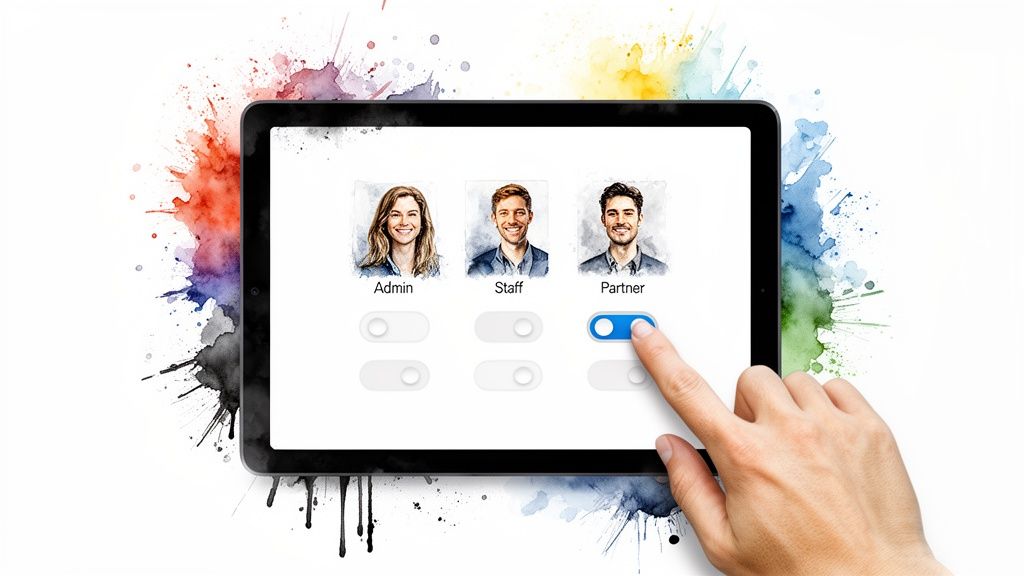
Shopify has different account types to give your team the access they need without handing over the keys to the business. When you sign into Shopify as the owner, you have absolute control. Your team members shouldn't.
Different Keys for Different Doors
Think of it this way: the Store Owner is the only one who can sell the business, change the Shopify plan, or manage payment details. This account is the single source of truth.
Then you have Staff accounts for your employees. You can grant them specific permissions to manage products, fulfill orders, or write blog posts. It’s pretty granular, but as many founders find, you can't limit them just to one area, like the blog. They’ll get access to pages, too.
Pro Tip: Never share your personal login. Create a separate staff account for every single person who needs access. It’s cleaner, more secure, and gives you a clear audit trail of who did what and when.
Finally, there are Shopify Partner accounts. This is the correct way to work with your developers, designers, or a marketing agency. They request access as a collaborator, which doesn't use up one of your paid staff slots. You simply approve their request and set their permissions.
If you're bringing on marketing help, you might want to read our thoughts on finding the right Shopify ad agency.
Connecting Your Store: The Next Step After Signing In
Once you're signed into Shopify, the real work begins. Your store is the central hub, but its true power is unlocked when you connect it to the right tools. This is about integrating systems that do the heavy lifting for you.
This isn't just about adding more tabs to your browser. It's about creating a seamless flow of information. For instance, when you connect your store to Needle, our AI can analyze your sales data, pinpoint what's working, and start suggesting marketing campaigns based on real performance. It's the difference between guessing and knowing.
Why App Integration Actually Matters
Let's be clear: connecting apps isn't just a "nice to have." It's how you stay competitive.
The Shopify App Store boasts over 13,000 tools. The goal isn't to collect them all. The key is smart integration—connecting a few powerful tools that simplify your strategy and help you capitalize on traffic.
Authorizing an app like Needle means you can finally stop manually pulling reports. The system automatically sees which ads are driving sales and which emails are getting clicks, then builds your next campaign calendar for you.
This connection is what allows you to run targeted email and ad campaigns that actually work. To make it happen, you'll need to grant permissions, which is a standard step. This simply lets the tool access necessary data—like sales, products, and customer info—to do its job.
After signing in, your first major goal should be getting your store connected. For a guide on launching, check out this resource on Starting a Shopify store. Another critical integration is setting up tracking pixels; you can find everything you need in our guide on how to install a Facebook pixel.
Manual vs. Automated Marketing Workflow
Connecting your store to a tool like Needle doesn't just make your marketing better—it gives you back your time. Manually pulling data, building reports, and launching campaigns is a huge time sink. Here’s a quick look at how much time you can save.
The difference is stark. Instead of getting bogged down in repetitive tasks, you can focus on bigger-picture strategy while the system handles the day-to-day execution. This shift is how modern e-commerce brands scale.
Frequently Asked Questions
How do I authorize a third-party app in Shopify?
Simple. Head to the Shopify App Store, find the app you want, and click "Add app." Shopify will show you exactly what permissions the app is requesting. Once you review them, just click "Install app" to finish the connection.
Is it safe to give apps access to my store data?
Yes, if you stick with reputable apps. Shopify has a robust app review process. Before installing anything, always check the app's reviews, read its privacy policy, and look at the permissions it wants. This ensures it only accesses the data it needs to function.
Can I revoke app access later?
Absolutely. You're always in control. In your Shopify admin, go to the "Apps" section. You'll see a list of everything installed. To remove one, click the trash can icon next to it, and its access will be revoked immediately.
Can I use one email for multiple Shopify stores?
Yes. You can use a single email address to create or be added to as many Shopify stores as you need. When you go to shopify.com/login, Shopify will ask you to pick which store you want to jump into.
How do I give an agency or freelancer access to my store?
Don't hand over your own login details. That's a huge security risk. The right way is to have them request access through their Shopify Partner account. They send a collaborator request, which you approve from your Shopify admin. This doesn't use up one of your paid staff slots and gives you full control over their permissions.
Ready to stop juggling a dozen marketing tools and get back to building your brand? Needle is your AI marketing agency in a single tab. We connect to your Shopify store, analyze your data, and launch campaigns that get results—all with your final approval.